Create Products in circuly Hub

Published on
July 20, 2026
Written by
Garima Singh
TABLE OF CONTENT

Traditionally, circuly syncs product and variant information from a connected shop system such as Shopify, WooCommerce, Saleor and more. 

This works well for businesses that rely on an eCommerce storefront to manage and display their product catalogue. However, the way businesses build and operate their digital infrastructure is changing.

More and more companies are going headless, decoupling their frontend experience from the backend, or building fully custom shops powered by their own tech stack. 

In many of these setups, there is no conventional shop system acting as the source of truth for product data, which means the standard sync approach doesn't apply.

Beyond technical architecture, there is another common scenario: businesses that don't operate an online store at all. 

This is especially true in B2B contexts, where subscription orders are created manually and on demand directly from the backend, with no customer-facing eCommerce flow involved. For these businesses, maintaining a separate shop system purely to feed product data creates unnecessary overhead.

The Create Product feature is built specifically for these use cases. It allows you to create products and their variants directly inside the circuly Hub no external shop system required.

Feature Overview

With this feature, you can build and manage your product catalogue entirely within circuly.

Products created in the Hub behave the same way as synced products: they can be used for creating subscription orders, assigned to product collections, and managed from the circuly Hub.

This makes the circuly Hub a fully self-contained environment for businesses that operate without a traditional eCommerce storefront, or for teams that need to add products quickly without going through an external system.

Key things you can do with this feature:

  • Create products with all relevant details including title, SKU, and pricing
  • Upload a product thumbnail via URL
  • Create and manage product variants under a parent product
  • Control whether a product is active for subscription orders
  • Control whether orders for the product can be created directly from the circuly Hub
  • Assign products to product collections for better organisation

Step-by-step guide

To create a product in the circuly Hub, follow these steps:

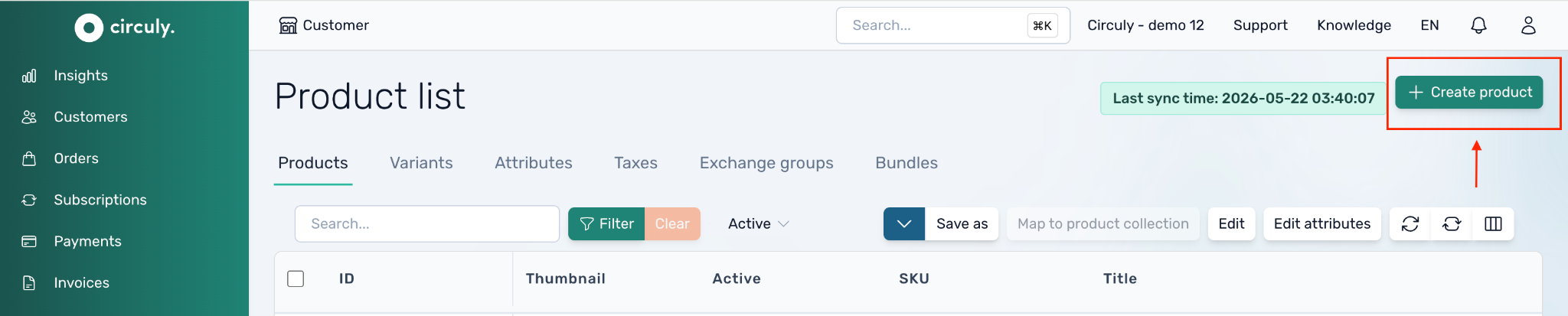
  • In your circuly Hub, navigate to the Products tab in the left navigation bar.
  • Click on the + Create Product button.
  • In the Create Product window, fill in the required details. Fields marked with an asterisk (*) are mandatory and must be completed before the product can be saved.
  • Click Save to create the product. It will now appear in your product list.

Explanation of input fields

Title*

The name of the product. This is used internally and may also be visible depending on your setup.

SKU*

The Stock Keeping Unit identifier for the product. Each product and variant should have a unique SKU to ensure accurate tracking and order management.

Price*

The rental or subscription price for the product. This is the amount that will be used when creating subscription orders for this product from the Hub.

Thumbnail Image

You can add a product image by entering a valid image URL. The image will be displayed as a thumbnail in the product list and in the order creation view, making it easier to identify products at a glance.

Active

This toggle is enabled by default. When active, the product is available for use in subscription orders. Disabling this switch deactivates the product, preventing it from being selected when creating new orders — without permanently deleting it.

Allow Order Create

When this switch is enabled, it is possible to create a subscription order for this product directly from the circuly Hub using the Create Order feature. This is particularly useful for businesses that manage their subscription operations entirely from the backend. If disabled, the product exists in the system but cannot be selected during manual order creation. Learn more about creating orders in the circuly Hub.

Product Variants

Similar to how variants work with synced products, products created in the Hub can have multiple variants. A variant represents a specific version of a product,  for example, different sizes, colours, or configurations, each with its own SKU and pricing.

Product Collections

Products created directly in the Hub can be assigned to product collections, just like synced products. Collections help you organise your catalogue into logical groups, which is useful for reporting, filtering, and order management within the circuly Operations Backend.

To assign a product to a collection, select the relevant collection when creating or editing the product.

How products created in the Hub interact with other circuly modules

Once a product has been created in the circuly Hub, it becomes available across several other circuly modules and workflows — the same way a synced product would behave.

circuly Store Connect

circuly Store Connect is the in-store module that allows store staff to create subscription orders on behalf of customers at any point of sale, without needing access to the full circuly Hub. Products created directly in the Hub are available for selection in Store Connect, making it possible for businesses without an online store to also equip their physical retail staff with everything they need to create orders on the spot.

Create Order and Create Quote

Products created in the Hub can be selected when creating an order or quote directly from the circuly Hub via the Draft Order feature. These two options work differently:

  • Create Quote sends the customer a PDF quote along with a pre-filled checkout link. The order stays in draft until the customer completes checkout and adds their payment details. Alternatively, the order can be confirmed immediately using the customer's existing payment method.
  • Create Order directly creates and confirms an order without any action required from the customer. Payment is either charged via the customer's existing payment method, or handled by invoice — in which case the payment needs to be manually marked as settled.

In both flows, the circuly checkout operates independently of any external eCommerce storefront, so customers can review their order and complete payment regardless of whether a shop system is in place.

Vouchers

Product-specific vouchers created in the circuly Hub can be applied to products created directly in the Hub, just as they would for synced products. This means discount campaigns and targeted promotions remain fully available even without an external shop system.

Self-Service Portal

Subscriptions tied to products created in the Hub are fully manageable through the circuly Self-Service Portal. Customers can view their subscription details, request cancellations, update payment details, and download invoices — all without any additional configuration required on the product side.

Use cases

Headless and custom-built storefronts

If your shop frontend is built on a custom stack or a headless architecture, you may not have a traditional shop system managing your product data. Instead of setting up a third-party integration purely to sync products, you can create and manage them directly in circuly.

Businesses without an online store

If your business model involves creating subscription orders on demand — for example, in a B2B context or through direct sales — you likely don't need a customer-facing shop at all. This feature lets you build a working product catalogue inside circuly without any external system dependency.

Quick product additions

Even for businesses that do use a shop system, there may be cases where a product needs to be added to circuly quickly for a one-off order or a pilot run. Creating it directly in the Hub avoids the need to update the external system and wait for a sync.

missing the answer to your question?

Fields marked with an asterisk (*) are required.
Thank you! Your submission has been received!

We are now hitting the keys to produce the content you are looking for. We will inform you once we are finished.  
Oops! Something went wrong while submitting the form.

Create Products in circuly Hub

Traditionally, circuly syncs product and variant information from a connected shop system such as Shopify, WooCommerce, Saleor and more. 

This works well for businesses that rely on an eCommerce storefront to manage and display their product catalogue. However, the way businesses build and operate their digital infrastructure is changing.

More and more companies are going headless, decoupling their frontend experience from the backend, or building fully custom shops powered by their own tech stack. 

In many of these setups, there is no conventional shop system acting as the source of truth for product data, which means the standard sync approach doesn't apply.

Beyond technical architecture, there is another common scenario: businesses that don't operate an online store at all. 

This is especially true in B2B contexts, where subscription orders are created manually and on demand directly from the backend, with no customer-facing eCommerce flow involved. For these businesses, maintaining a separate shop system purely to feed product data creates unnecessary overhead.

The Create Product feature is built specifically for these use cases. It allows you to create products and their variants directly inside the circuly Hub no external shop system required.

Feature Overview

With this feature, you can build and manage your product catalogue entirely within circuly.

Products created in the Hub behave the same way as synced products: they can be used for creating subscription orders, assigned to product collections, and managed from the circuly Hub.

This makes the circuly Hub a fully self-contained environment for businesses that operate without a traditional eCommerce storefront, or for teams that need to add products quickly without going through an external system.

Key things you can do with this feature:

  • Create products with all relevant details including title, SKU, and pricing
  • Upload a product thumbnail via URL
  • Create and manage product variants under a parent product
  • Control whether a product is active for subscription orders
  • Control whether orders for the product can be created directly from the circuly Hub
  • Assign products to product collections for better organisation

Step-by-step guide

To create a product in the circuly Hub, follow these steps:

  • In your circuly Hub, navigate to the Products tab in the left navigation bar.
  • Click on the + Create Product button.
  • In the Create Product window, fill in the required details. Fields marked with an asterisk (*) are mandatory and must be completed before the product can be saved.
  • Click Save to create the product. It will now appear in your product list.

Explanation of input fields

Title*

The name of the product. This is used internally and may also be visible depending on your setup.

SKU*

The Stock Keeping Unit identifier for the product. Each product and variant should have a unique SKU to ensure accurate tracking and order management.

Price*

The rental or subscription price for the product. This is the amount that will be used when creating subscription orders for this product from the Hub.

Thumbnail Image

You can add a product image by entering a valid image URL. The image will be displayed as a thumbnail in the product list and in the order creation view, making it easier to identify products at a glance.

Active

This toggle is enabled by default. When active, the product is available for use in subscription orders. Disabling this switch deactivates the product, preventing it from being selected when creating new orders — without permanently deleting it.

Allow Order Create

When this switch is enabled, it is possible to create a subscription order for this product directly from the circuly Hub using the Create Order feature. This is particularly useful for businesses that manage their subscription operations entirely from the backend. If disabled, the product exists in the system but cannot be selected during manual order creation. Learn more about creating orders in the circuly Hub.

Product Variants

Similar to how variants work with synced products, products created in the Hub can have multiple variants. A variant represents a specific version of a product,  for example, different sizes, colours, or configurations, each with its own SKU and pricing.

Product Collections

Products created directly in the Hub can be assigned to product collections, just like synced products. Collections help you organise your catalogue into logical groups, which is useful for reporting, filtering, and order management within the circuly Operations Backend.

To assign a product to a collection, select the relevant collection when creating or editing the product.

How products created in the Hub interact with other circuly modules

Once a product has been created in the circuly Hub, it becomes available across several other circuly modules and workflows — the same way a synced product would behave.

circuly Store Connect

circuly Store Connect is the in-store module that allows store staff to create subscription orders on behalf of customers at any point of sale, without needing access to the full circuly Hub. Products created directly in the Hub are available for selection in Store Connect, making it possible for businesses without an online store to also equip their physical retail staff with everything they need to create orders on the spot.

Create Order and Create Quote

Products created in the Hub can be selected when creating an order or quote directly from the circuly Hub via the Draft Order feature. These two options work differently:

  • Create Quote sends the customer a PDF quote along with a pre-filled checkout link. The order stays in draft until the customer completes checkout and adds their payment details. Alternatively, the order can be confirmed immediately using the customer's existing payment method.
  • Create Order directly creates and confirms an order without any action required from the customer. Payment is either charged via the customer's existing payment method, or handled by invoice — in which case the payment needs to be manually marked as settled.

In both flows, the circuly checkout operates independently of any external eCommerce storefront, so customers can review their order and complete payment regardless of whether a shop system is in place.

Vouchers

Product-specific vouchers created in the circuly Hub can be applied to products created directly in the Hub, just as they would for synced products. This means discount campaigns and targeted promotions remain fully available even without an external shop system.

Self-Service Portal

Subscriptions tied to products created in the Hub are fully manageable through the circuly Self-Service Portal. Customers can view their subscription details, request cancellations, update payment details, and download invoices — all without any additional configuration required on the product side.

Use cases

Headless and custom-built storefronts

If your shop frontend is built on a custom stack or a headless architecture, you may not have a traditional shop system managing your product data. Instead of setting up a third-party integration purely to sync products, you can create and manage them directly in circuly.

Businesses without an online store

If your business model involves creating subscription orders on demand — for example, in a B2B context or through direct sales — you likely don't need a customer-facing shop at all. This feature lets you build a working product catalogue inside circuly without any external system dependency.

Quick product additions

Even for businesses that do use a shop system, there may be cases where a product needs to be added to circuly quickly for a one-off order or a pilot run. Creating it directly in the Hub avoids the need to update the external system and wait for a sync.