

Order Revocation Law (EU) & Withdrawl Button in circuly
Introduction
Since 19 June 2026, EU Directive (EU) 2023/2673 requires anyone selling online to EU consumers, subscription or one-off, to offer a "withdrawal button": a clearly labelled, easy-to-find way for customers to withdraw from a contract made online, without logging in.
circuly's Order Revocation feature lets you offer this directly from your Self-Service Portal environment, so you can meet the new requirement without custom development.
Feature overview
Order Revocation allows your customers to withdraw from an order by simply submitting their email address and order number, no login required. This is different from a normal cancellation made through the Customer Self-Service Portal, which requires the customer to log in first. Two things make this compliant with the new EU rule.
1. Easy accessibility
The withdrawal option needs to be visible and easy to find, not buried behind a login page.
We recommend adding a clearly labelled text (for example "Withdraw order") to your website footer and/or header.
The text has the link to the withdrawl form behind it.
circuly also adds a withdrawal link to the order confirmation page, so customers see it right after checkout as well.
2. No login required
The link points to a dedicated withdrawal form on your white-label circuly Self-Service Portal, not to the portal's login page. On this form, the customer only enters their email address and order number to check their order.
3. Withdrawal window
The withdrawal option is only available while the order is still within its legal withdrawal period. If a customer tries to withdraw after this period, the withdrawal simply isn't possible.
Prerequisite
1. Fulfilled status for orders: Before you begin, please keep in mind that you should only use this feature if you use the "Fulfilled" status in circuly since the withdrawal feature relies on the Fulfilled status in the circuly Hub.
If you don't use the Fulfilled status in your workflow, we recommend not enabling this feature, as the withdrawal window can't be calculated correctly.
Without a reliable Fulfilled date, all orders, regardless of whether they're actually still within their legal withdrawal window, would remain eligible for revocation, which isn't correct.
2. Early cancellation period: Please make sure that you've set a value for the early cancellation period in your settings. Read the article on the early cancellation period if you haven't set it up yet.
Step-by-step setup guide
To enable and configure Order Revocation, follow these steps:
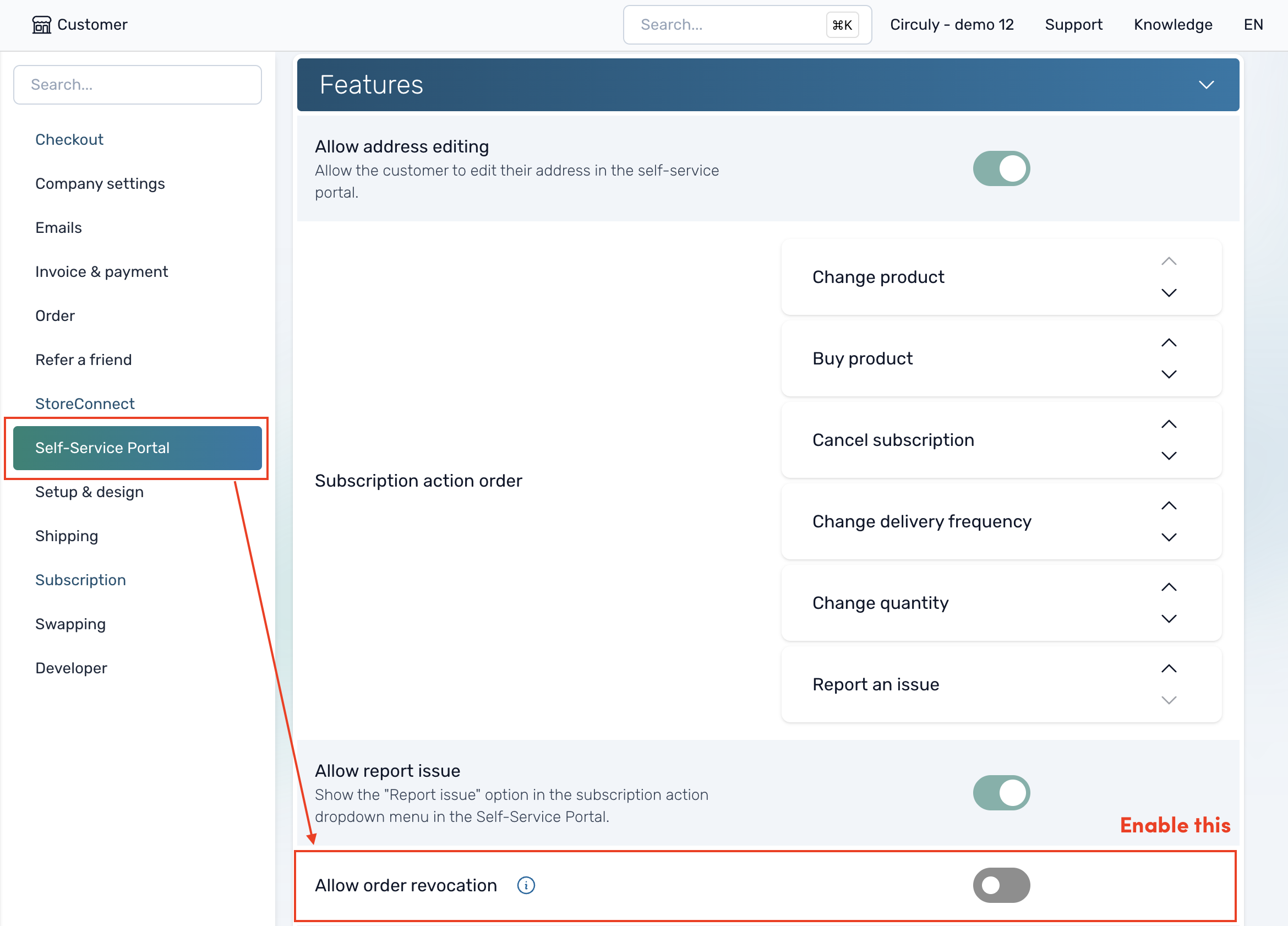
- Go to Settings > Self-Service Portal > Features > Allow Order Revocation and enable the switch.
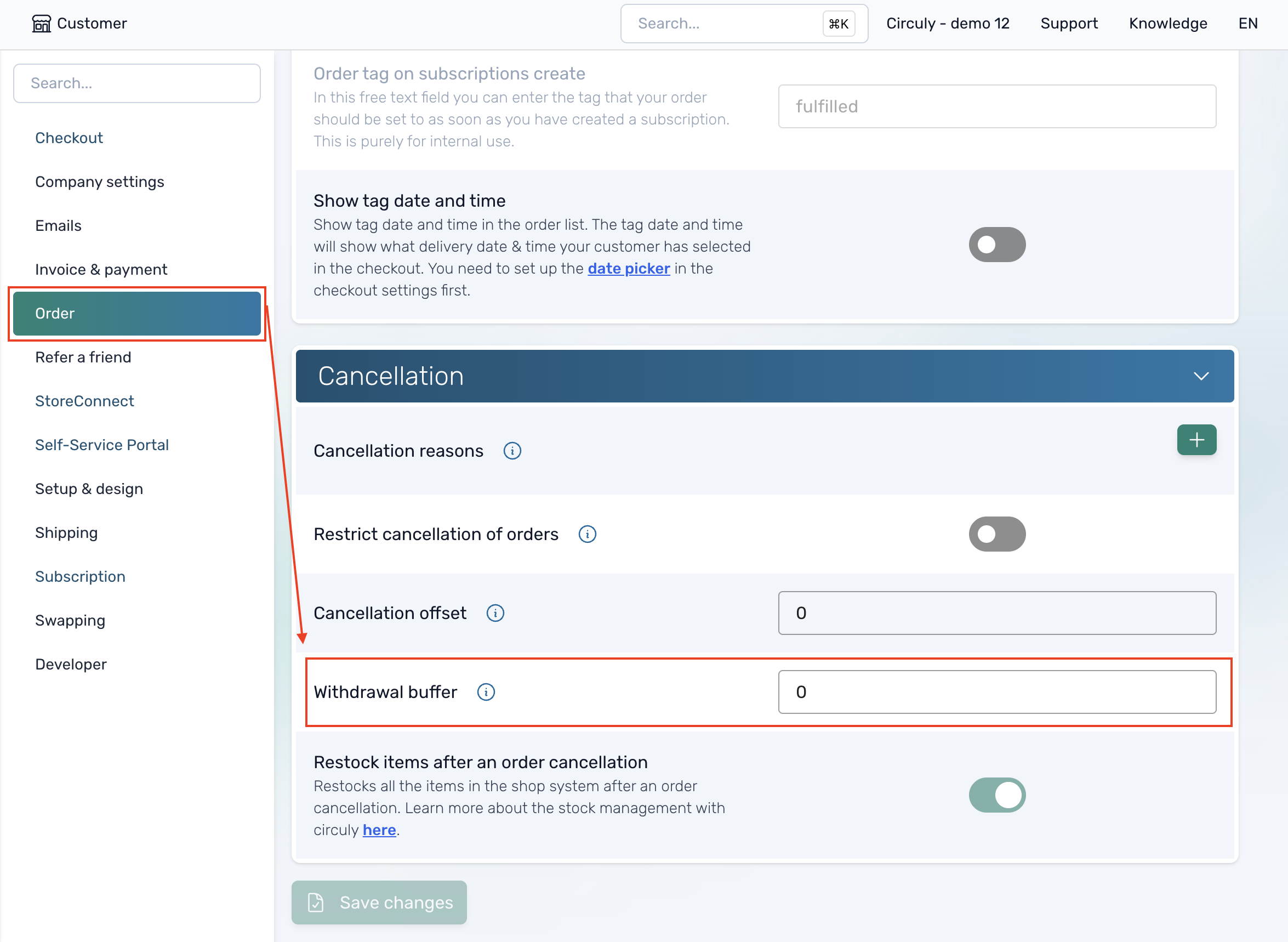
- Go to Settings > Order > Cancellation > Withdrawal Buffer and add a numeric value (in days).
What is the withdrawl buffer?
The withdrawal buffer accounts for your delivery window.
Most merchants have a standard delivery time, for example 5–7 days. Since the legal withdrawal period only starts once a customer actually receives their order, and circuly doesn't track exact delivery dates, the buffer is added on top of your order's Fulfilled status to approximate when delivery happens.
In practice: withdrawal window = withdrawal buffer + statutory withdrawal period (your early cancellation period), counted from the date the order enters Fulfilled status.
Example: a 5-day buffer plus a 14-day statutory withdrawal period gives customers 19 days from the order's Fulfilled date to submit a withdrawal.
- Go to your customer Self-Service Portal login page. Next to the one-time password button, you'll now see an additional button called Revoke your order. Click it to open the withdrawal form, then copy the URL from your browser.
Alternatively, a simpler way to get this link is to take your Self-Service Portal login URL and replace auth/login with public/revoke.
For example, if your login URL ishttps://subscription.circuly.io/en/auth/login?company_id=5550-37496638dl, your revoke URL ishttps://subscription.circuly.io/en/public/revoke (with or without the company ID)
.png)
- Use this URL as the link behind your "withdraw" text in your footer, header, or wherever else you add it.
Customer journey & steps for making a withdrawal
- The customer goes to your website and clicks the withdrawal link, wherever you've placed it (footer, header, etc.).
- The link takes them to the withdrawal form on your circuly Self-Service Portal.
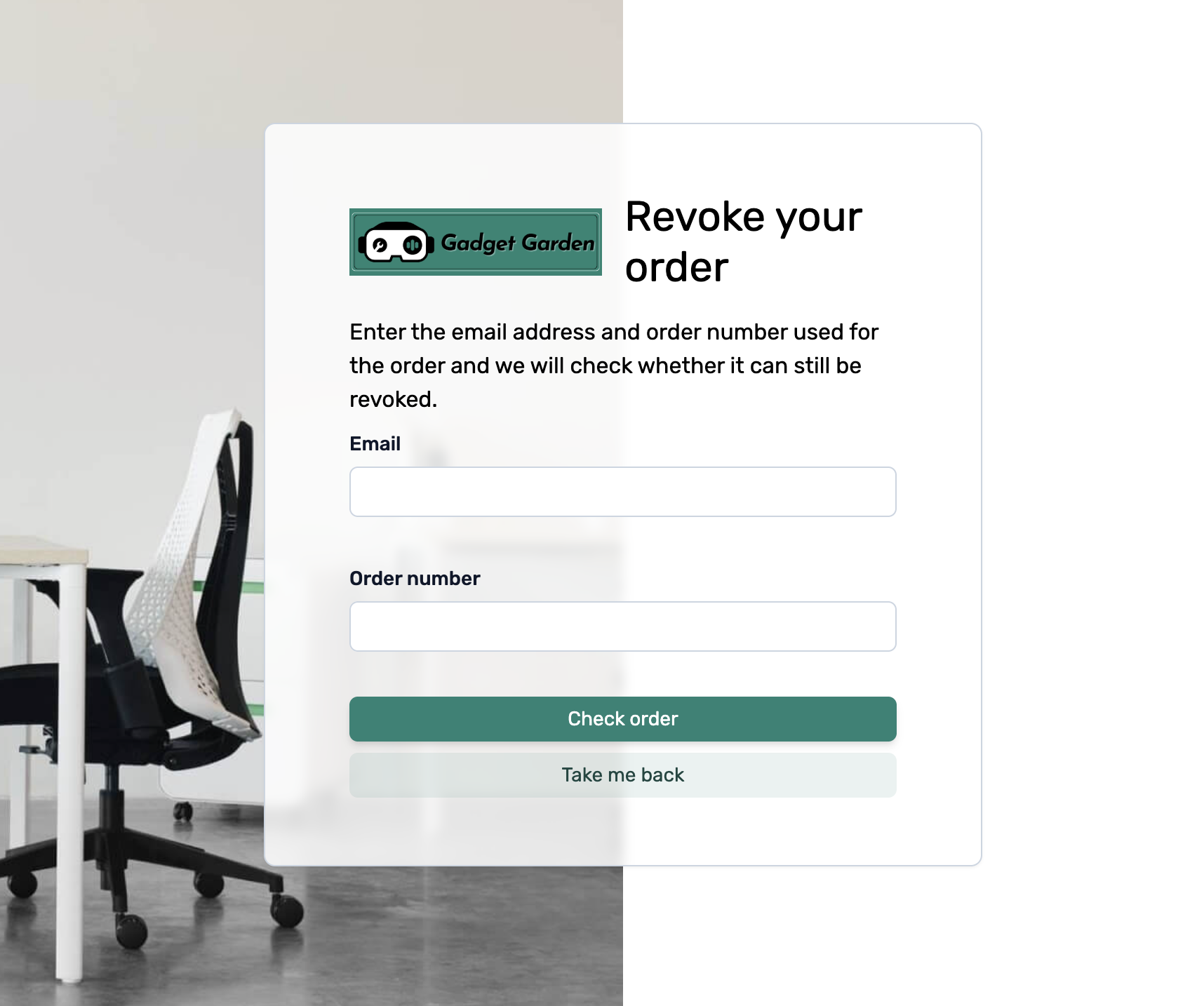
- The customer enters their email address and order number on the form, then clicks Check order.
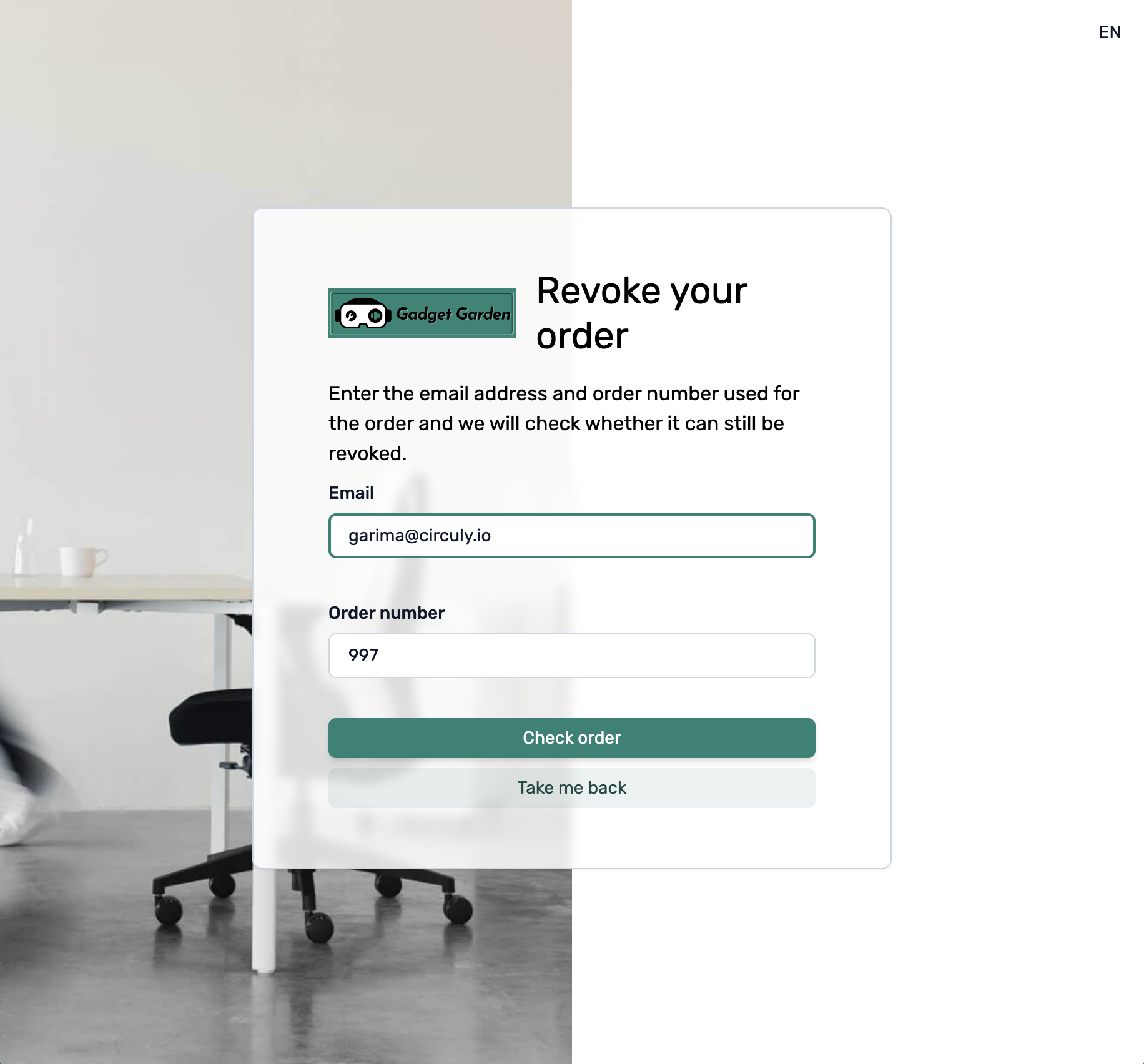
- If eligible, the customer sees the order they're withdrawing from and can optionally add a withdrawal reason. Once confirmed, they see a confirmation screen.
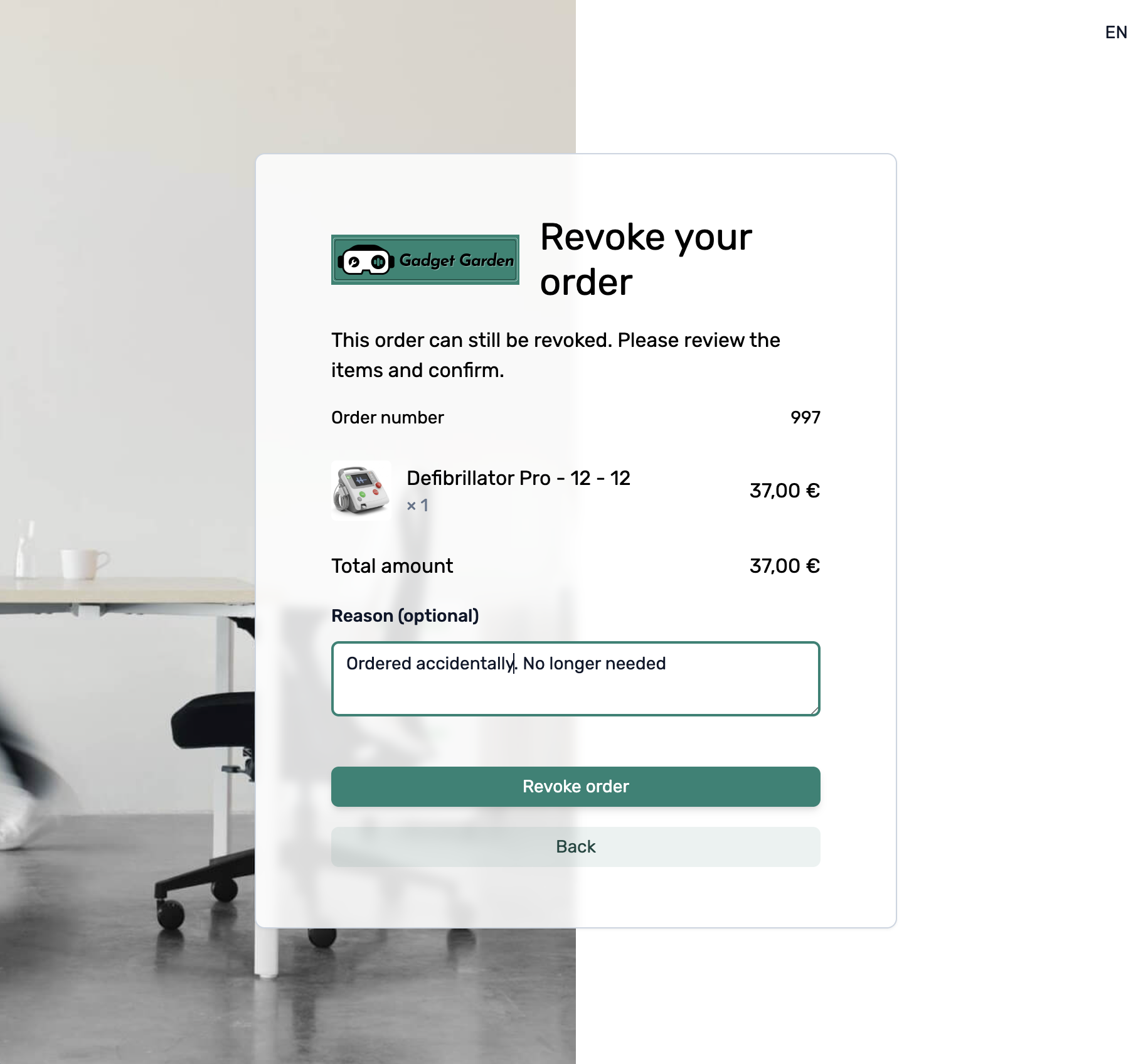
- If the withdrawal window has passed, the customer sees a message that withdrawal is no longer possible.
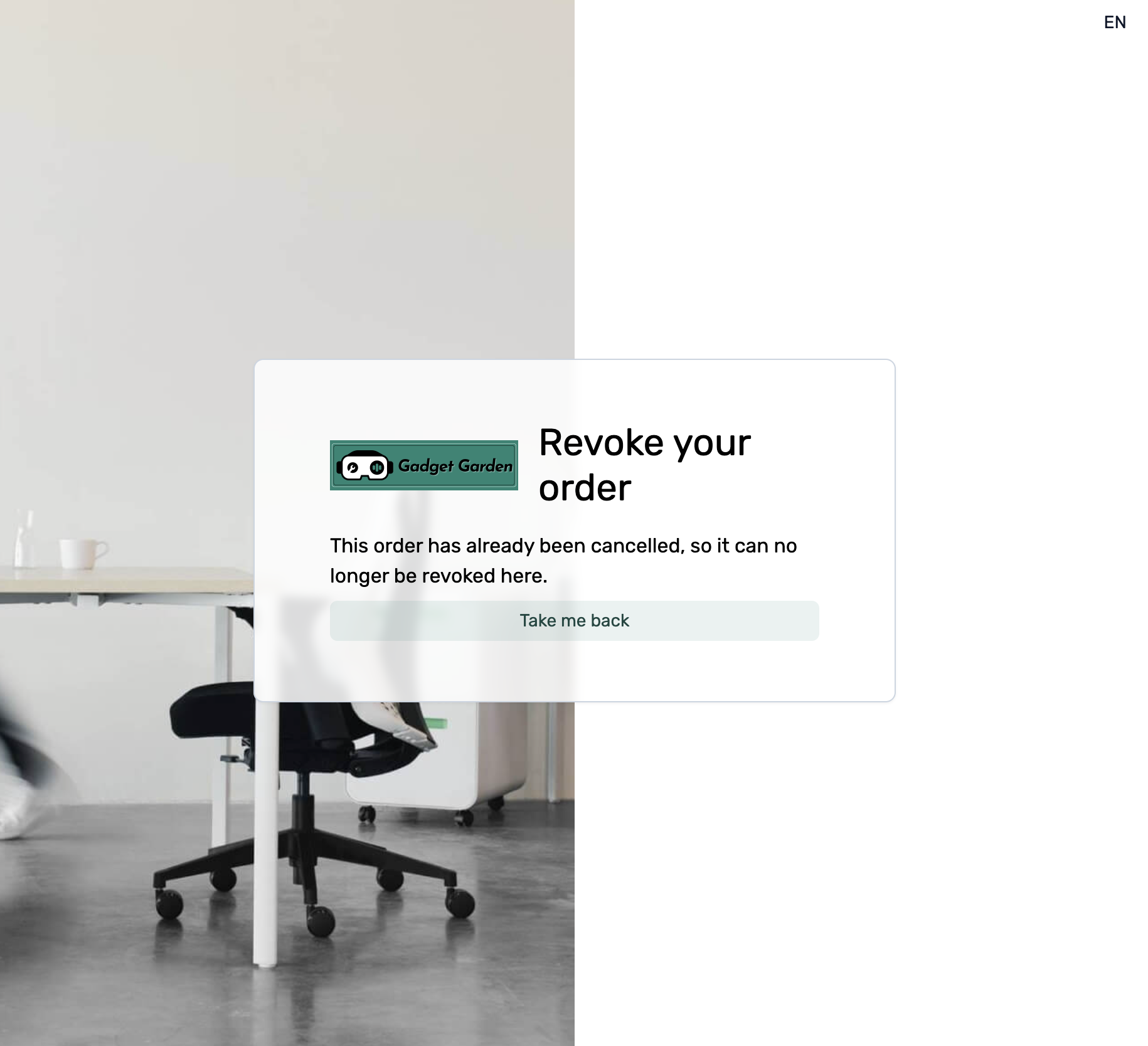
- If the withdrawal has already been made for the order, the customer sees a note that that the order has already been cancelled.
What happens in the background in circuly
1. Validating the withdrawal request
When the customer clicks Check order after entering their email address and order number, circuly checks in the background whether the withdrawal request is valid.
Validity is based on the following calculation: withdrawal window = withdrawal buffer + statutory withdrawal period (defined in your settings as the early cancellation period).
2. Sending the order cancellation email
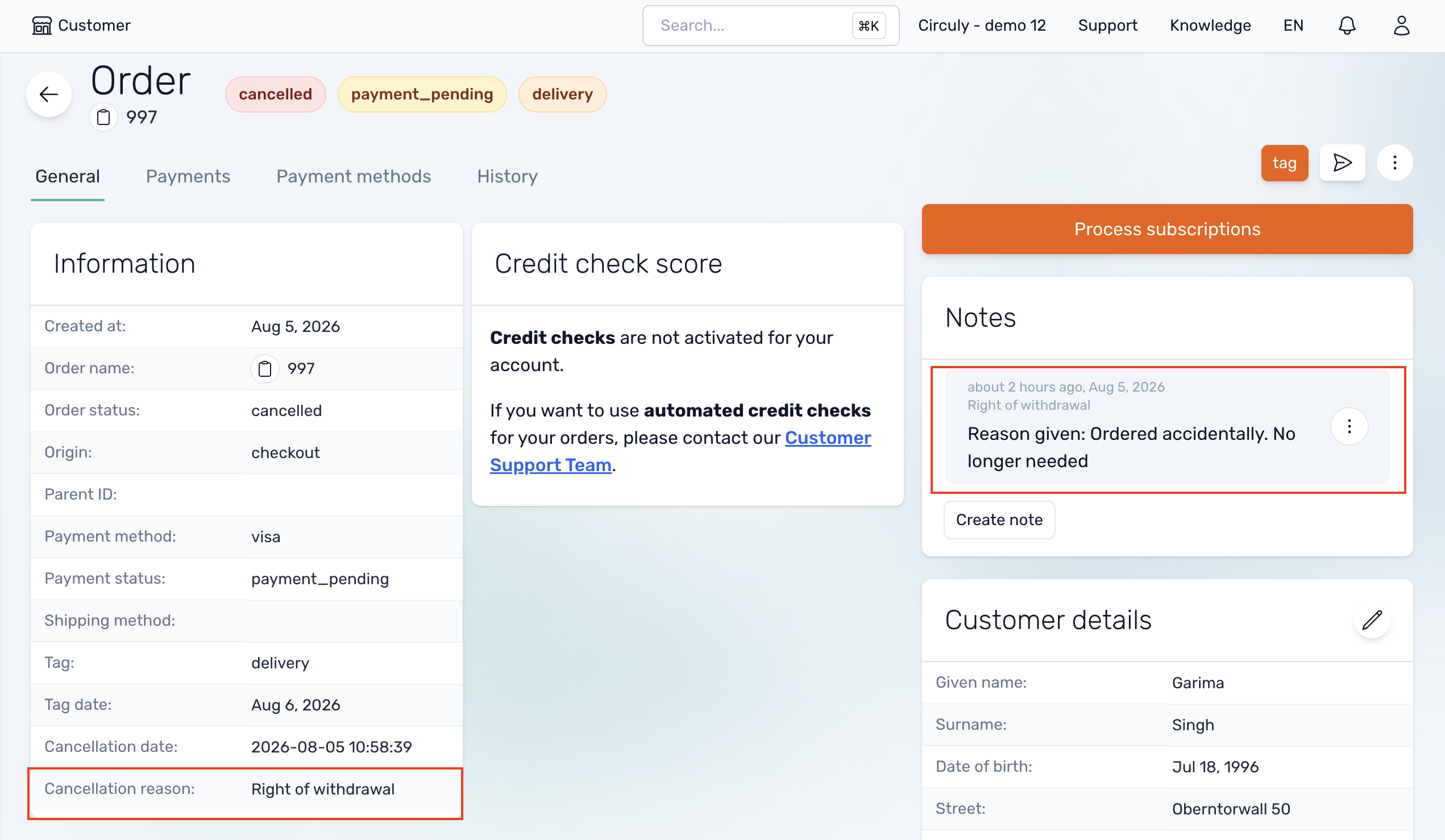
After a successful withdrawal, the customer receives the order cancellation email from circuly's email templates. If you've added the order cancellation reason and cancellation date variables to that template, the withdrawal reason appears in the email too. You'll also see the revoke reason on the order in the circuly Hub.
3. Refunding the payment
If any payments were charged for the order, they're automatically refunded to the customer's original payment method.