
We've released three updates to the circuly Hub, each solving a common operational challenge raised by our customers:
- New available shipping modes: offer or hide shipping methods depending on the products in the cart, so mixed carts always get a method that fits.
- One-time payments via offline invoice: send your customer an invoice to pay by bank transfer instead of charging their saved payment method.
- Auto reactivate switch per subscription: exclude individual subscriptions from automatic reactivation, for example in cases of suspected fraud.
What changes for you? Nothing changes automatically. Your existing shipping methods, one-time payments and reactivation settings keep working as before. The new options are available now, so you can start using them whenever they fit your workflow.
1. New available shipping modes
Before: Shipping methods could only be limited to certain product collections in a way that made rules exclude each other. When a cart mixed products with different shipping requirements, no shipping method matched it.
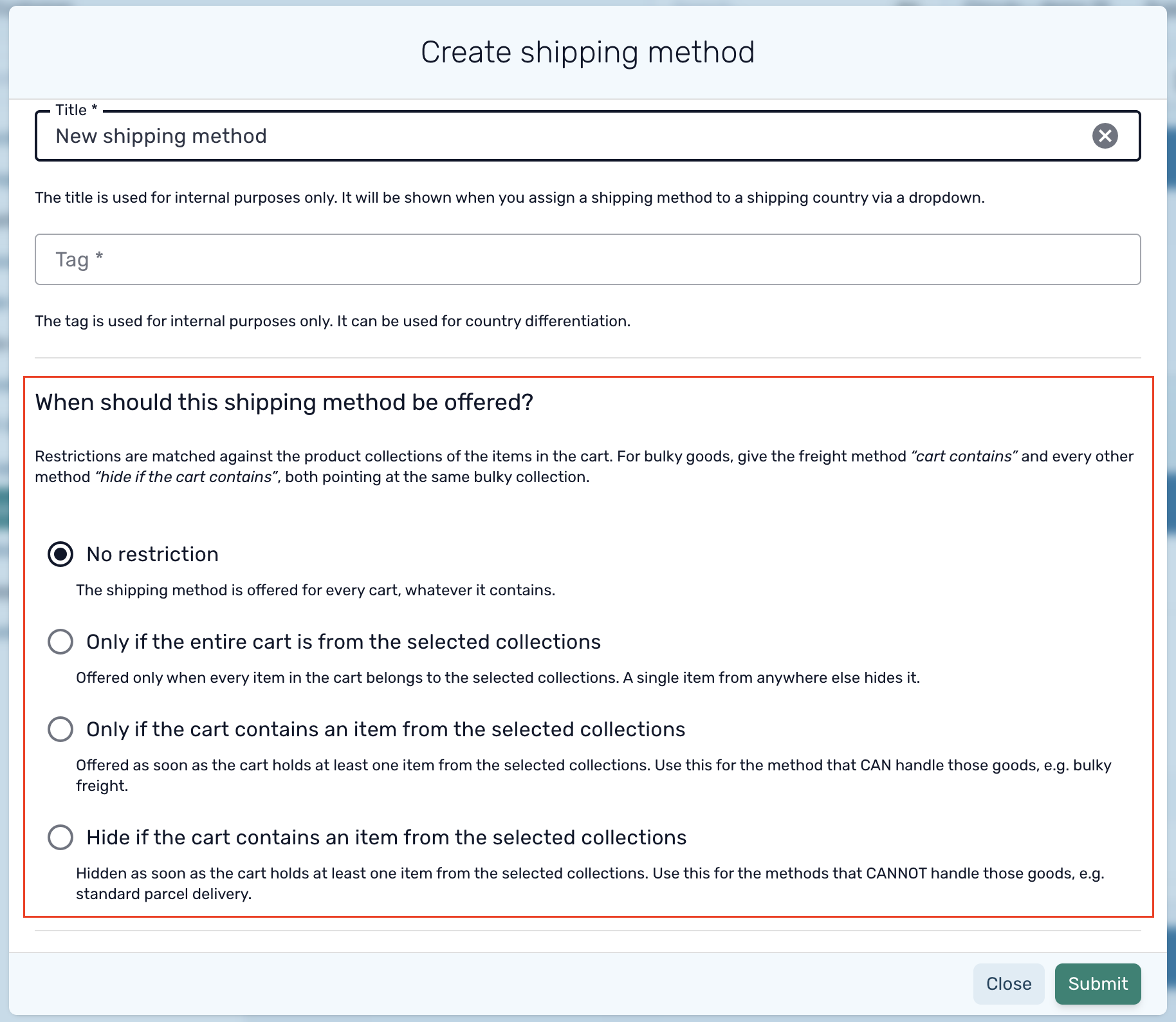
Now: Each shipping method has a new setting, When should this shipping method be offered? You can offer or hide a method depending on which product collections are in the cart:
- Always, whatever the cart contains
- Only if the entire cart is from the selected collections
- Only if the cart contains at least one item from the selected collections
- Hide if the cart contains at least one item from the selected collections
This means every cart, including mixed ones, gets a shipping method that fits all the products in it.
Example: You ship bulky items by freight and everything else by parcel. Set your freight method to "cart contains" and your parcel method to "hide if the cart contains", both pointing at your bulky collection. A cart with a bike and a helmet then only shows freight.
Who it's for: any business whose products have different shipping requirements, for example:
- bulky or heavy goods that need freight delivery
- fragile items that need special packaging or a specialised carrier
- temperature-sensitive or hazardous products with carrier restrictions
- small accessories that can go out as cheap letter post
- products that are only available for pickup or local delivery
2. Charge one-time payments via offline invoice
Before: One-time payments were always charged to the customer's saved payment method. High amounts, like damage fees for a returned product, were often declined by the card.
Now: With the new Charge via offline invoice checkbox, the customer receives an invoice and pays by bank transfer. Unpaid invoices can be handed over to Debtist for debt collection.
Who it's for: anyone charging damage, repair or other ad-hoc fees, especially high amounts.

3. Auto reactivate switch per subscription
Before: If automatic reactivation was enabled, every subscription in pending return was reactivated once the return period ended, including cases where that made no sense, such as suspected fraud.
Now: The new Auto reactivate switch lets you exclude individual subscriptions from automatic reactivation. They stay in pending return or pending replacement, and you decide what happens next. Manual reactivation is still possible at any time.
Who it's for: teams handling suspected fraud, returns in transit, damage settlements or agreed exceptions with customers.

New available shipping modes
- Group the products that need special shipping into a product collection, e.g. Bulky, Fragile or Pickup only, and map the products to it.
- Go to Settings > Shipping and edit the shipping method that can handle those products. Select Only if the cart contains an item from the selected collections and choose the collection.
- Edit the shipping methods that can't handle them. Select Hide if the cart contains an item from the selected collections and choose the same collection.
👉 Read the full guide: Setup Shipping Methods and Shipping Logics
Charge one-time payments via offline invoice
- Make sure your Payment - One-time Transaction invoice template includes your bank details (Settings > Emails).
- Go to Orders, select the order, click the three dots and choose One-time payment.
- Enter the title and amount, check Charge via offline invoice and confirm.
- Once the bank transfer arrives, mark the payment as settled.
👉 Read the full guide: How to Charge a One-Time Payment
Auto reactivate switch per subscription
- Make sure Reactivate subscription is enabled in Settings > Subscriptions > Cancel Subscription. Otherwise the switch has no effect.
- Go to Subscriptions and select the subscription.
- Click the Auto reactivate switch next to Auto renew and confirm with Disable.
👉 Read the full guide: Reactivate a Subscription
Important
1. Shipping: when you restrict one shipping method, check every other method connected to the same country. A method left on "No restriction" will still appear alongside the restricted ones.
2. Offline invoices: add your bank details to the Payment - One-time Transaction invoice template before you send your first offline invoice. Otherwise your customer won't know where to transfer the money.
3. Auto reactivate: the switch only takes effect if Reactivate subscription is enabled in Settings > Subscriptions > Cancel Subscription.